
How to Create Video from Zillow Listing in Minutes with Listing2Video
Turning a Zillow listing into a video is faster than you think.
All you have to do is paste the Zillow URL into Listing2Video and the tool takes care of the rest.
Most agents spend hours hunting photos, writing copy, and stitching clips together. By the time you hit "publish," the buyer’s interest may have slipped.
What if you could create video from Zillow listing with just a few clicks? Imagine uploading the URL, letting the tool pull the details and photos, and watching a polished short‑form clip appear in your inbox.
This intro will show why that matters, how the workflow saves time, and what benefits you’ll see on the market.
First, a video catches the eye faster than a static photo grid. Buyers scroll past dozens of listings, but a moving preview holds attention for seconds longer. Those extra seconds often turn into a call or a showing.
Second, consistency is key. When every listing has the same sleek style, your brand feels professional and trustworthy. No more mismatched fonts or shaky footage.
Third, the process is cheap. You avoid hiring a videographer, renting gear or learning editing software. The AI‑driven platform does the heavy lifting for you.
By the end of this guide, you’ll know the exact steps to get a ready‑to‑share video, where to post it for max reach, and how to measure the lift in leads.
Ready to cut the grunt work and let the video do the selling? Let’s get started.
With a video ready same day, you can add it to your listing sites, share it on Instagram, and email it to prospects. All without leaving your dashboard.
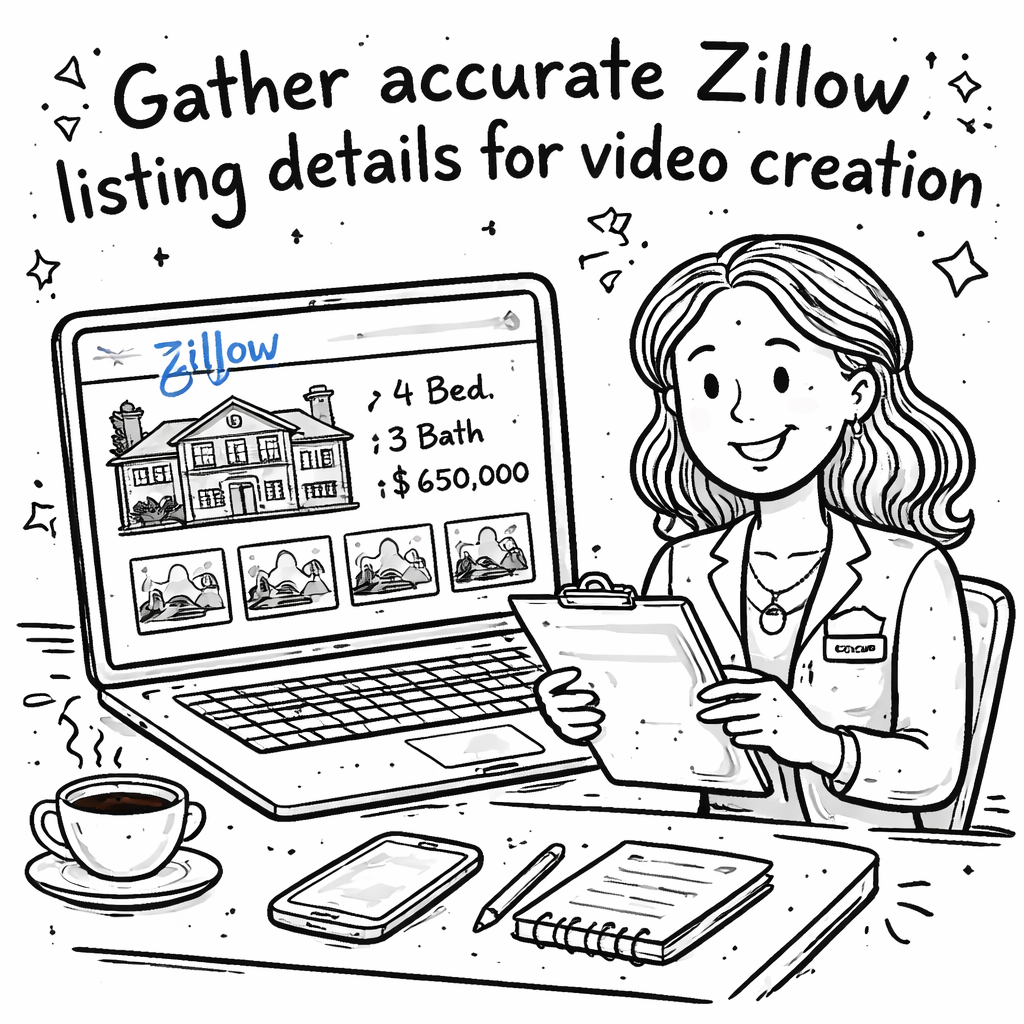
Step 1: Gather Accurate Zillow Listing Details
First thing you need is the right data. A clean, complete Zillow listing gives the AI the info it needs to build a video that feels real.
Open the Zillow page for the property you want to showcase. Copy the URL from the address bar – that link is the key input for the tool.
Look at the main facts section. Make sure the address, price, number of bedrooms, bathrooms, and square‑footage are all shown. If any detail is hidden, edit the listing on Zillow so the number appears before you pay to create the video.
Having the exact details and clear photos means the AI can match voice‑over text to each room, add the right price tag, and sync music beats with the visual flow. It also cuts down on back‑and‑forth edits later.
A quick audit of the data saves you hours later. Missing a bedroom count or a wrong zip code can cause the video to show wrong info, which may turn off potential buyers.
Once you’ve saved the URL, you’re ready to feed them into Listing2Video. The platform will pull the data, stitch the clips, and send you a polished video ready to upload. In the next step we’ll walk through how to upload those files and fine‑tune the video output.
Step 2: Optimize and Embed the Video on Zillow and Social Channels
Now the video is ready, you need to make sure it looks its best wherever it lives.
First, check the thumbnail. Pick a frame that shows the front of the house or a standout room. A clear, bright image grabs attention faster than a dark one.
Next, add a short, punchy title in Zillow’s media box. Include the address and a hook like “Cozy 3‑bed home with new kitchen”. Keep it under 60 characters so it doesn’t get cut off.
Before you hit “Save”, play the clip on a phone, a tablet, and a desktop. Look for any text that blurs at small sizes. If the voice feels too soft, lower the music volume a notch. Small tweaks now save you re‑uploads later.
Embedding on Zillow
Copy the embed code you received by email. Paste it straight into Zillow’s “Add Media” field. The video will appear right under the photo carousel, letting buyers watch without leaving the page.
Make sure the video is set to auto‑play muted, with a clear “Play” button. Zillow’s platform respects those settings, so the clip loads fast and keeps the page quick.
Sharing on Social Channels
Export the square version for Instagram and the widescreen version for Facebook or LinkedIn. Upload each file directly to the platform – don’t just share a link, because native video gets higher reach.
Write a brief caption that repeats the Zillow headline and adds a call‑to‑action, like “Schedule a showing today!” Use relevant hashtags (#realestate, #newlisting) to broaden the audience.
Pin the video to your Facebook page’s “Videos” tab so it stays easy to find. On Instagram, add it to a story highlight labeled “New Homes”.
If you’re ready to start posting right away, you can sign up for Listing2Video and get the files sent straight to your inbox.
Finally, track performance. Zillow shows view counts; social platforms give likes, comments, and shares. Compare those numbers to a plain photo post and note the lift. That data helps you decide how many videos to make each month.
With a quick check, a clean embed, and a few social tweaks, your Zillow listing turns into a magnet that pulls in more eyes and more leads.
Step 3: Measure Performance and Refine Your Strategy
Now the video lives on Zillow and socials, you need to know if it works. The simplest way is to watch the numbers that each platform gives you.
Pick the right metrics
Views tell you how many eyes saw the clip. Likes and comments show if they cared enough to react. Shares are a strong sign that the post helped you reach new buyers.
On Zillow, look for the view count next to the media box. On Instagram and Facebook, the post insights panel breaks down plays, likes, saves, and shares. If you see more plays than a plain photo post, you’re on the right track.
Set a quick check routine
Give the video a week to settle. Then pull the numbers and write them in a short table. Compare the new data to the last listing you posted without video. Spot the lift and note any drop‑offs.
MetricWhere to find itWhat to look forViews/PlaysZillow media box, Instagram post insightsHigher than photo post baselineEngagement (likes, comments)Facebook post insights, Instagram insightsIncrease signals interestShares/SavesFacebook, InstagramShows content is worth passing onTurn those notes into a tiny action list. If views are low, try a brighter thumbnail. If likes lag, test a different music track or voice tone. Small tweaks often lift the numbers fast.
Track the changes week by week. Over a month you’ll see which tweaks stick and which don’t. That rhythm of measure‑adjust‑measure keeps your video strategy fresh.
When you’re ready to plan the next batch, check the pricing details so you know how many videos fit your budget and can keep the cycle going.
Conclusion and Next Steps
You've seen how to pull a Zillow page, let the tool pick the best shots, and push the clip to the places buyers scroll. The key is to treat each video like a mini ad that you test, tweak, and repeat.
First, set a quick habit: every two weeks open your Zillow video tab, note the view count and any new leads, then jot one change: a new thumbnail, a tighter hook, or a fresh hashtag. That simple loop keeps the content fresh and the pipeline moving.
If you need a clear price guide for the tool, check out our Pricing page before you schedule the next batch.
Finally, keep learning about the tech that powers video SEO. For a broader view on AI tools, you can read How to Choose and Use an AI SEO Audit Tool in 2026 and apply any relevant tip to your listings.
Take the first step today, pull a listing, hit create, and watch the leads roll in.
FAQ
How do I turn a Zillow listing into a video in minutes?
First copy the full Zillow URL. Then open the Listing2Video dashboard, paste the link, pick a style, and hit “Create”. The platform pulls the price, photos and description, builds a short clip, and emails you the finished MP4. You can upload that file to Zillow or any social channel right away. The whole flow takes less than five minutes.
Do I need any video editing skills to use the tool?
No. The AI does the editing for you. It adds smooth motion to the photos, writes a voice-over line for each key feature, and layers royalty-free music. Your job is just to choose a voice tone, a music track, and any branding elements you want. When you click “Export”, the final video is ready to share without any extra work.
What kind of footage does the AI choose for the video?
The system scans every image on the Zillow page and picks the five to seven brightest shots. It prefers rooms with good lighting, clear angles and standout features like a new roof or a renovated kitchen. Those picks become the core clips, and the AI adds a gentle pan or zoom to make each still feel alive.
How should I share the video to get the most leads?
Post the clip on Zillow first, then push it to Instagram Reels, Facebook and TikTok. Use a bright front-door thumbnail and a short hook in the caption. Add a couple of local hashtags and a clear call-to-action like “Message me for a private tour.” Track which platform brings the most clicks and double down on that channel.
How often should I update the video if the listing changes?
Check the listing every two weeks. If the price drops, new photos are added, or the status changes, run the URL through Listing2Video again and swap the old file for the fresh one. Keeping the video up-to-date lets buyers see the latest info and keeps your marketing fresh.